> For the complete documentation index, see [llms.txt](https://docs.cebodtelecom.com/llms.txt). Markdown versions of documentation pages are available by appending `.md` to page URLs; this page is available as [Markdown](https://docs.cebodtelecom.com/new/manage-phone-system/call-center/dialer-features-for-call-center-agents.md).
# Dialer Features for Call Center Agents
The *Dialer* application provides a range of features tailored for call center agents, offering quick access to status management, automation, and post-call actions directly from the dialer interface.
***
#### 1. Agent Status Display
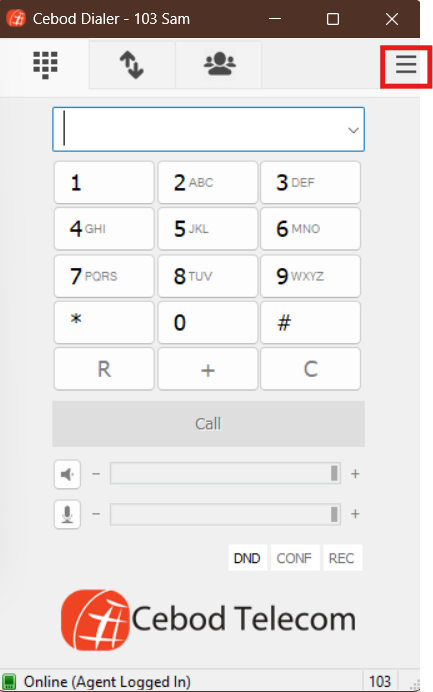
At the bottom-left corner of the dialer window, the agent's current status is displayed based on the last dialed status code.
**Important Note:**\
*These statuses are stored locally on the dialer. For example, if an agent logs in from the dialer using **`*41`** and logs out from a separate device (e.g., desk phone) using **`*42`**, **the dialer** will still show the status as "Online (Agent Logged In)", but the status for the agent will be updated in the system.*
*To manually reset or clear the status on the dialer, the agent can dial **`*11`**.*
*Best practice is to log in only from the dialer, and that's also from one location.*
***
#### Available Agent Status Dial Codes
Agents can change their status by dialing the following feature codes from the dialer:
| Dial Code | Status Displayed on Dialer |
| --------- | ---------------------------------- |
| `*41` | Online (Agent Logged In) |
| `*42` | Online (Agent Logged Off) |
| `*43` | Online (Agent On Break) |
| `*44` | Online (Agent Available on Demand) |
| `*31` | Online (Agent ACWA) |
| `*32` | Online (Agent On Lunch) |
| `*33` | Online (Agent Sch Break) |
| `*34` | Online (Agent On Training) |
| `*35` | Online (Agent Not Ready) |
| `*36` | Online (Agent Tech Issue) |
| `*37` | Online (Agent in Meeting) |
***
#### 2. Auto-Answer Feature
The dialer supports **Auto-Answer** to streamline call handling. When enabled, a **beep tone** alerts the agent before the call is connected.
**How to Enable:**
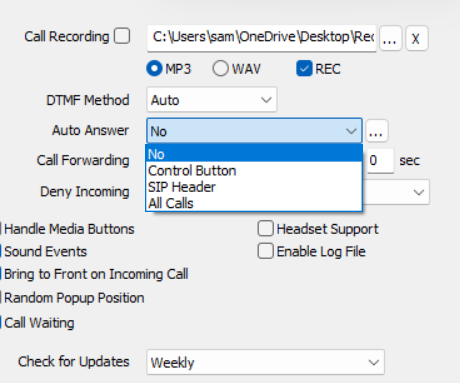
* Open **Dialer Settings** with `Ctrl + P` or by clicking on the dialer window.
* Locate the **Auto Answer** dropdown
* Select one of the following modes:
* **All Calls** – Automatically answers all incoming calls.
* **Control Button** – Displays a toggle button on the main dialer screen, allowing the agent to turn auto-answer on or off dynamically.
***
#### 3. Bring Call Window to Front
This feature ensures that the incoming call pop-up window is always visible by bringing it to the foreground.
**How to Enable:**
* Go to **Dialer Settings** (`Ctrl + P`)
* Check the box labeled **Bring to Front on Incoming Call**
***
#### 4. Call Disposition
This feature prompts agents to assign a disposition to each call after it ends, helping with call tracking and outcome analysis.
**How to Enable:**
* Open **Dialer Settings** (`Ctrl + P`)
* Check the box next to **Enable Disposition**
Once enabled, a pop-up appears at the end of every call, allowing agents to select a relevant disposition.
**Available Call Dispositions:**
* Interested
* Not Interested
* Call Back Scheduled
* Sale/Conversion Made
* Needs Manager Approval
* Follow-up Required
* Upset/Complaint
* No Answer
* Voicemail Left
* Busy Line
* Disconnected/Invalid Number
* Do Not Call Request
* Wrong Number
* Langauge Barrier
* Already A Customer
* Duplicate Contact
* Not A Decision Maker
* System Issue
* Transfer To Another Department
* Test Call
Click here for instructions on [**Cebod Dialer Installation and Setup.**](/overview/cebod-telecom-free-applications/setup-cebod-pc-dialer.md)

 on the dialer window.