> For the complete documentation index, see [llms.txt](https://docs.cebodtelecom.com/llms.txt). Markdown versions of documentation pages are available by appending `.md` to page URLs; this page is available as [Markdown](https://docs.cebodtelecom.com/features/send-fax-via-dashboard.md).
# Send Fax via Dashboard
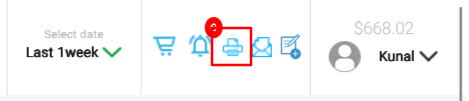
You can send faxes directly from the dashboard by clicking the **third icon** located at the top right-hand corner of the screen.
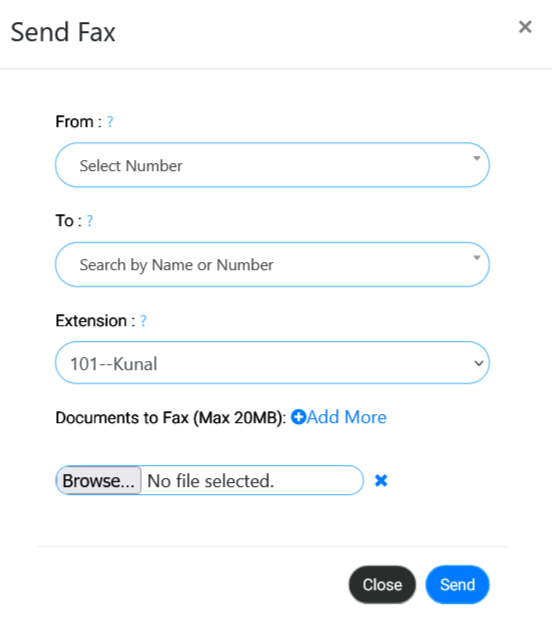
This opens a pop-up form for fax submission.
**Fields Required:**
* **From:**\
The sender’s fax number (usually the assigned fax number).
* **To:**\
The recipient’s fax number. Must be entered in **11-digit format** (e.g., 1XXXXXXXXXX).
* **Extension:**\
The designated **fax extension** is being used for the fax.
* **Documents to Fax:**\
Users can attach **multiple files**, each up to **20 MB** in size.\
Supported file formats include **PDF** and **image files** (e.g., JPG, PNG).
* **Send:**\
Clicking this button will send the fax to the recipient.
**Viewing Sent Faxes:**
To view the status and history of sent faxes, go to Activities -> Faxes:
{% content-ref url="/pages/-LYXMEhHegpIKz86-zBd" %}
[Faxes](/new/activities/faxes.md)
{% endcontent-ref %}
You can also send a fax via email, check the next page for instructions.